Understanding Labor Efficiency
See when stores were overstaffed or understaffed relative to actual customer demand.
Labor Efficiency reveals when your stores were overstaffed or understaffed relative to actual customer demand. Rather than showing raw headcount, it surfaces the specific time slots where staffing was out of sync with traffic, so you can adjust future schedules with precision.
How it works
The analysis is built on two key signals:
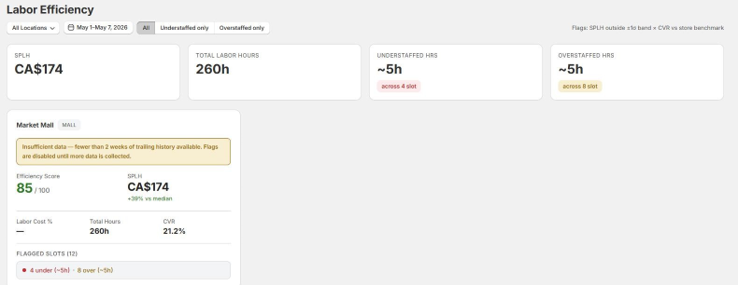
SPLH (Sales per Labor Hour): revenue generated per hour of staffed labor. High SPLH can signal understaffing; low SPLH can signal overstaffing.
CVR (Conversion Rate): the share of visitors who made a purchase, used alongside SPLH to confirm the direction of a staffing deviation.
Avia compares each time slot to the same moment on the equivalent day of the week in the baseline period. A slot is flagged when SPLH falls outside one standard deviation of the baseline, with CVR confirming the direction:
Before you start
Labor Efficiency requires three data sources:
Traffic data from your Avia device
Sales data from Shopify
Labor hours entered for each store
Warning: Labor hours should be added before Avia runs the daily Labor Efficiency calculation. If labor hours are missing for the selected dates, Labor Efficiency may appear empty or incomplete. If labor hours are changed mid week or added late, the data may not appear and require support review before it appears correctly.
Adding labor hours
Option 1: Manual entry (via the dashboard)
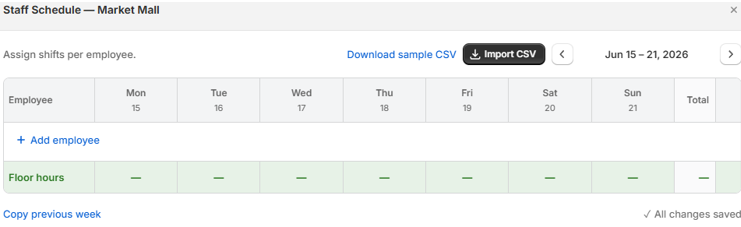
Navigate to Store Management → Labor Hours. Assign shifts per employee across the week. You can also enter Floor Hours for aggregate or unassigned labor. Use Copy previous week to pre-fill from the prior week and adjust from there. All changes are auto-saved.
Option 2: CSV import
Navigate to Store Management → Labor Hours.
Click Download sample CSV and fill in your labor hours using the template.
Click Import CSV and select your completed file.
Review the import summary and confirm.
Use the Avia CSV template exactly: custom column names or formats are not supported and will cause the import to be rejected.
Option 3: EasyTeam integration
Info: Avia also integrates with labor management platforms. If you use EasyTeam, your shifts (per employee, per day, per store) can feed Labor Efficiency directly through the integration, replacing manual entry.
Dashboard metrics
Why it matters
Labor is typically a retailer's largest controllable operating expense. Scheduling decisions made on intuition or broad averages are expensive, either in missed sales (understaffing) or unnecessary payroll (overstaffing). Labor Efficiency replaces guesswork with signal grounded in your actual traffic and sales data.
Use it to answer: were we understaffed during our busiest windows last week? Which stores are consistently over-scheduled on slow mornings? Did our new schedule reduce overstaffing vs. the prior period? Where did we lose conversion due to insufficient floor coverage?
Baseline data
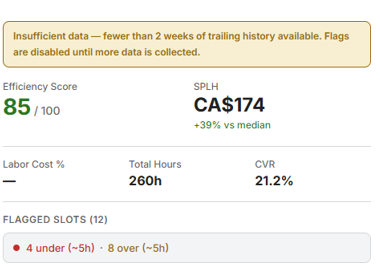
Labor Efficiency may need enough historical data before all insights become available. If you see a warning about insufficient baseline data, Avia does not yet have enough previous data to compare against. Continue entering labor hours consistently, and insights will become more useful once enough baseline data is available.
If Labor Efficiency is empty
Before contacting support, confirm that:
The correct store and date range are selected
Labor hours were added for the selected dates
The store was open during the selected dates
Traffic data and Shopify sales data are available for the selected dates
Store opening hours are configured correctly in Store Management
Labor Efficiency requires traffic data, sales data, and labor hours. If one of these is missing, it may appear empty or incomplete.
Related articles
Need help?
If Labor Efficiency appears empty or incorrect after checking traffic data, Shopify sales data, and labor hours, contact Avia support at avia.support@retailogists.com and include:
Store name
Selected date range
A screenshot of the Labor Efficiency section
Whether labor hours were added for the selected dates
Whether Shopify sales data is appearing correctly
Was this helpful?
Still need help? Ask the team