Connecting Avia to an AI assistant (Claude & ChatGPT)
Give Claude or ChatGPT read-only access to your Avia store data using the MCP connection
Avia can connect directly to an AI assistant like Claude or ChatGPT using MCP (Model Context Protocol). Once connected, you can ask the assistant questions about your store in plain language — traffic, conversion, staffing, and more — and it reads the answers straight from your Avia dashboard data.
The connection is read-only: the assistant can read your Avia data, but cannot change anything in your account.
How it works
Each connection uses a unique MCP connection URL tied to one of your Avia API keys. You paste that URL into your AI assistant once, and from then on the assistant can answer questions about that store's Avia data.
Warning: This link gives an AI assistant read-only access to your store's Avia dashboard data. Anyone with the link can use it, so treat it like an API key — do not share it publicly or with anyone outside your organization.
Before you begin
You'll need your MCP connection URL:
Open your Avia dashboard settings and select or create an API key.
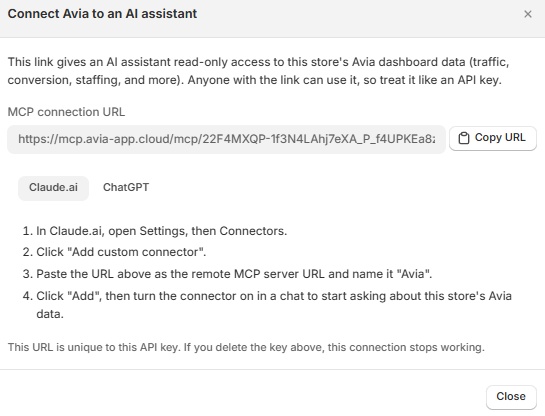
Click on MCP, it will open the Connect Avia to an AI assistant dialog.
Click Copy URL to copy your unique MCP connection URL.
Keep this URL handy for the steps below. The URL is unique to that API key — if you delete the key, the connection stops working.
Connect with Claude.ai
In Claude.ai, open Settings, then Connectors.
Click "Add custom connector".
Paste the URL above as the remote MCP server URL and name it "Avia".
Click "Add", then turn the connector on in a chat to start asking about this store's Avia data.
Claude.ai
Connect with ChatGPT
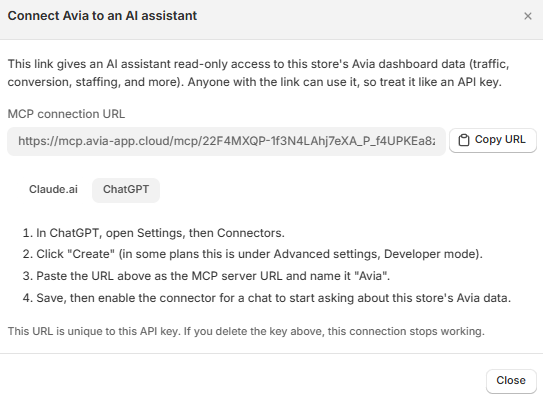
In ChatGPT, open Settings, then Connectors.
Click "Create" (in some plans this is under Advanced settings, Developer mode).
Paste the URL above as the MCP server URL and name it "Avia".
Save, then enable the connector for a chat to start asking about this store's Avia data.
Managing the connection
The MCP connection URL is unique to a single API key. If you delete that key, the connection stops working and the assistant can no longer access your data. To revoke an assistant's access, delete or rotate the API key it uses.
Related articles
Need help?
If the connection isn't working or the assistant can't see your data, contact Avia support at avia.support@retailogists.com and include:
Company name
Store or account name
Which assistant you're connecting (Claude or ChatGPT)
What you were trying to ask
Was this helpful?
Still need help? Ask the team